
We can identify images made by:
 STABLE DIFFUSION
 MIDJOURNEY
 FLUX
 4o
 IMAGEN


10 ways to spot AI-generated images plus tools you can use to confirm
'Oh, I can definitely tell if an image is AI' says everyone. In reality, few can and even less can do it consistently. Most AI images are harmless: art, anime, or memes.
But many are used for misinformation.
If you don't think you've ever scrolled through something AI, you have. If you think you can tell every time, you can't.
Lets go through the techniques you can use to answer the question defining the 2020s: AI or Not?
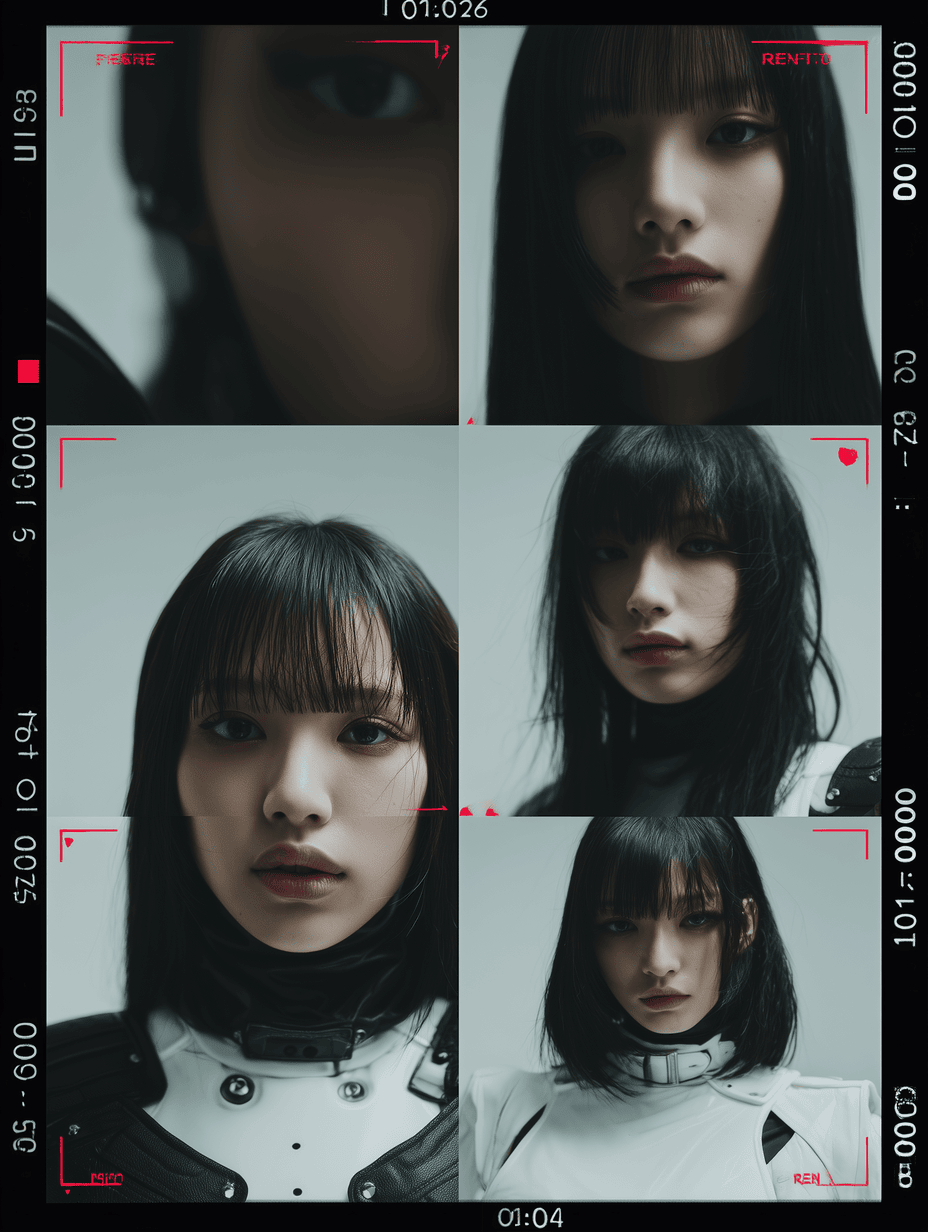
Where do AI image generators struggle the most when it comes to people? Fingers and toes! So thats where are analysis shall start: are the hands where they should be, are the counts for fingers and toes right?
Real faces have character through their slight imperfections, its what makes each one of unique. And one's left side is slightly different from the right side of our faces. AI tends to generate faces with that are symmetrical to a fault, giving clues to us about the picture's origins. This symmetry creates an almost doll-like aesthetic that should tell you an image isn't real.
Skin is the largest organ in the human body and tells stories through its imperfections. Pores, fine lines, slight color variations, wrinkles and minor blemishes give photographs authenticity and the people in said photos character. No one's skin is perfect, not even on Instagram! The skin of a character in an AI image may appear doll like with skin that has no texture. Take a closer look at someone's face in a picture: if their skin is smoother than a Kardashian's on IG, it may be a telltale sign the image is not actually real.
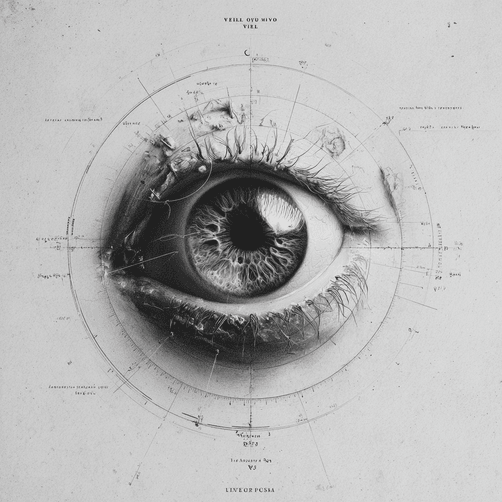
Eyes are a window to the soul. Do the eyes in a picture you're looking at seem almost soulless? Are the eyes too clear? Does it seem they are not reflecting their environment consistently. AI-generated eyes might now have consistent reflections in each, may look too bright, or have a glassy appearance.
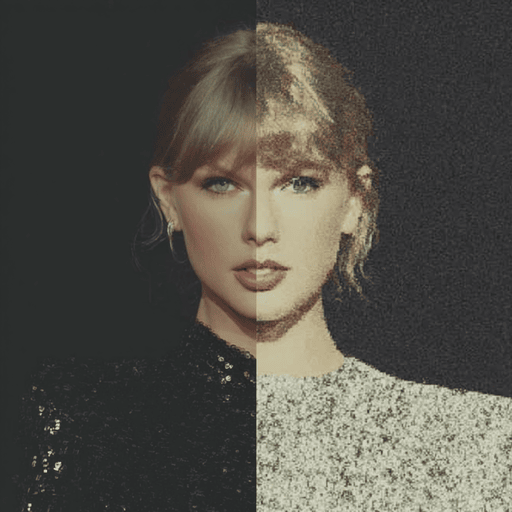
Lighting is one of the most important factor in what makes a good picture or not. Too much light, the subject doesn't look right, too little light and the subject isn't seen well. Shadows should fall in line with where the light source is and consistently across the whole image. And illumination should feel natural across the entire image. AI images have a hard time with all of this, often mishandling shadows that are pointing in multiple directions or areas lit without the subsequent aligned light sources.
In an AI image, the main subject(s) often look convincing and perfect because the artificial intelligence models are concentrating on making that specific thing or person perfect. However, backgrounds may not keep the main subject's quality when it comes to AI. Buildings and people in the background might blend in strange ways, objects blur together nonsensically, or architectural details appear dreamlike, like they're right out of Inception, rather than structurally sound. These distortions, or clues for our purpose, become much more apparent when you shift focus from the main subject; in a real image, you should not see a falloff in quality while in an AI image it maybe look like it has been scribbled on.
Text has been one of AI image generators consistent challenges. Street signs, product labels, book covers, or any writing in AI images often contains gibberish that resembles language but looks more like symbols trying to be text. Similarly to how we analyzed backgrounds in images, look for text in the background too. Similarly, its often secondary text that may give it away. Letters may be reversed, simple words misspelled, letters combined incorrectly or replaced with symbol-like marks that are trying to look like real text. If you see AI's version of lorem ipsum, you know the answer to whether the image is AI or not.
Has this image appeared anywhere else? In the case of a famous person or politician's image, theres a good chance that the specific image has not been a secret until this every moment. AI-generated content oftentimes has never been seen before. Check to see if the image exists anywhere else as an additional check.
Metadata gives technical information right within image files and may include details such as "Created with Midjourney" or "AI Generator: Stable Diffusion" right in the image's file properties.
Right-click the image and select "Properties"
Click the "Details" tab to view metadata of the image
Right-click on the image file in question
Select "Get Info" to see metadata fields
Android: Open Google Photos, tap the three dots on an image, then select "Details"
iOS: View photo information through the info icon in your camera roll
Please be warned: social media, and other image sources, will often compress and remove all the original metadata with a photo and replace it with their own. Bad actors might also edit these on their own.
Oftentimes, after going through this exhaustive list, you still can't tell. Or, if you want to skip some steps, an AI detector can help. Look for an established company who actually builds, and updates, their own models and ensures full data privacy. AI or Not offers full stack AI detection across all content types: images, text, video and audio.
STABLE DIFFUSIONMIDJOURNEYFLUX4oIMAGENWhat you need to know to about AI or Not